Get started
From download to first message.
9 short steps. No phone number, no e-mail: you need an Android phone, a licence key and a pen for your recovery words.
Step 1
Download the app
- On your Android phone (8.0 or newer), open the download page and tap Download APK.
- Optional: compare the SHA-256 shown on the page with the file you downloaded.
- iPhone is coming soon. The web app links to your phone once your account exists.
frozenchat.com/download
Android · APKDownload APKDownloads
ice-chat.apk
Step 2
Install it
- Open the downloaded file from your notifications or the Downloads folder.
- The first time, Android asks you to allow installs from your browser: turn on Allow from this source and go back.
- Tap Install. Later updates install over the old version and keep your chats.
Install unknown apps
Your browserAllow from this sourceDo you want to install this app?
Frozen Chat
Install
Step 3
Buy a licence key
- Pick a plan on the pricing page and choose New account — get a key.
- Pay with cryptocurrency. No name, no e-mail and no account are needed to buy.
- Keep the order page open until the payment confirms, then copy your key and keep it somewhere safe.
frozenchat.com/order
Payment confirmedYour licence key
ICE-7K2Q-9MXD-…
Copy keyNo name, no e-mail, no account needed.
Step 4
Open Frozen Chat
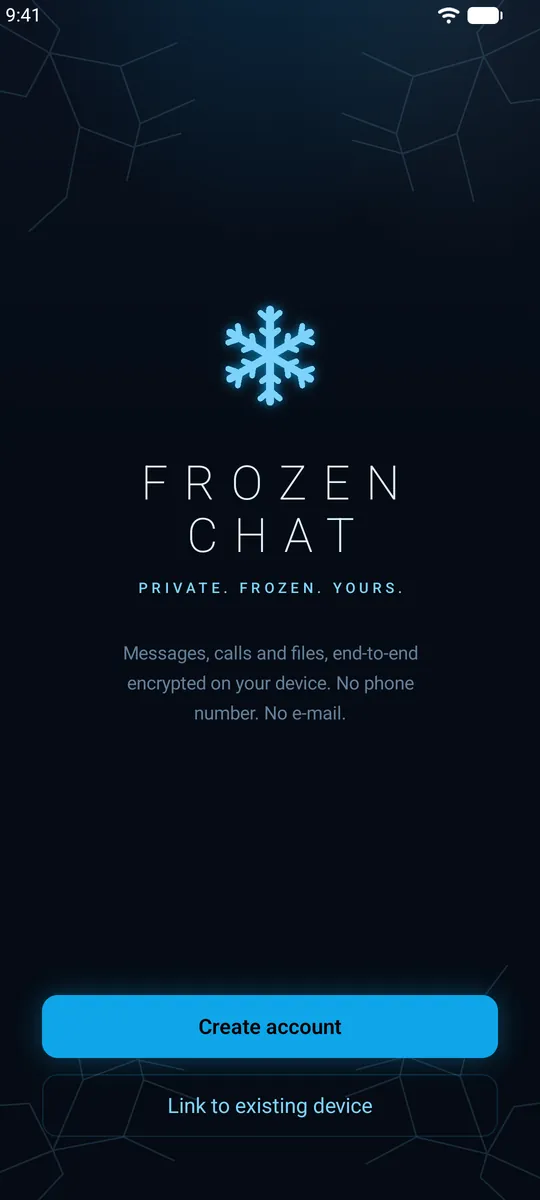
- Open the app and tap Create account.
- Already use Frozen Chat on another phone? Tap Link existing device instead and scan the code with your other phone.
Step 5
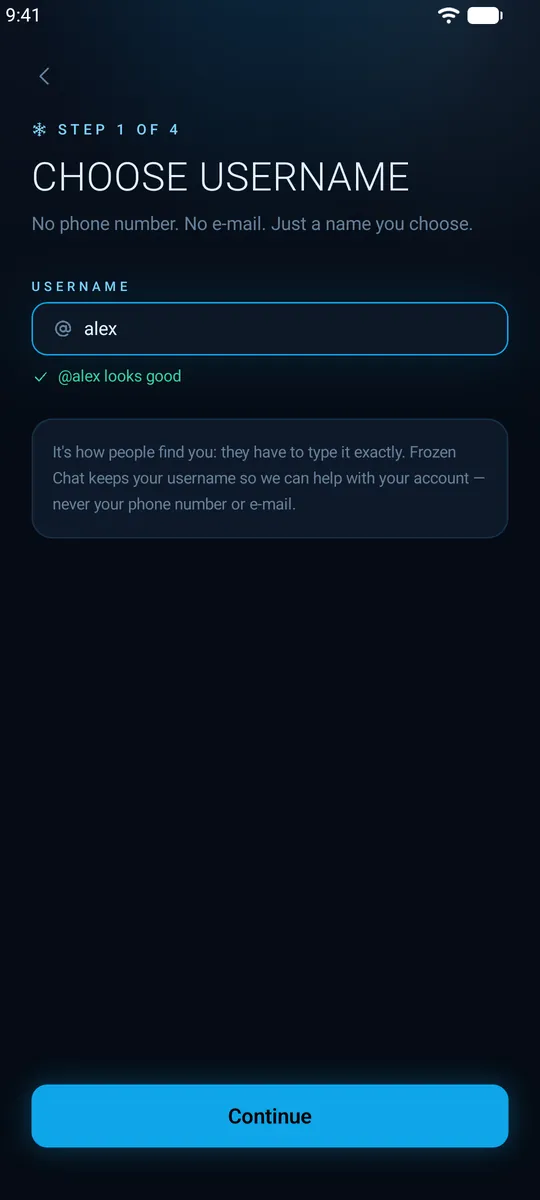
Choose a username
- Pick the username people will type to find you. No phone number, no e-mail.
- The app tells you straight away whether it's free.
Step 6
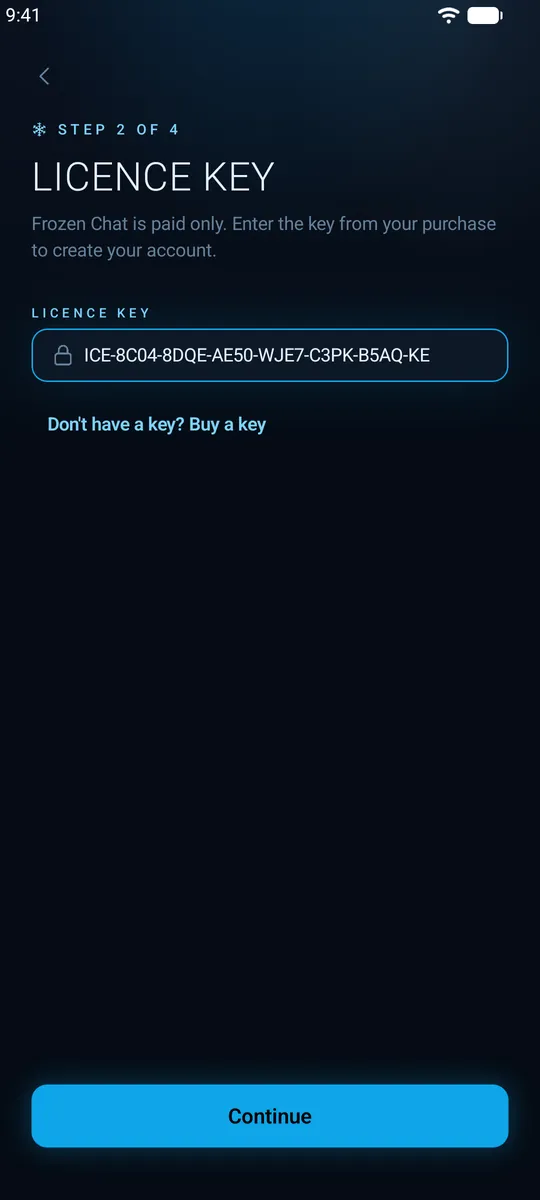
Enter your licence key
- Paste the key from your order page and continue.
- Your phone now creates your encryption keys. The private keys never leave it.
Step 7
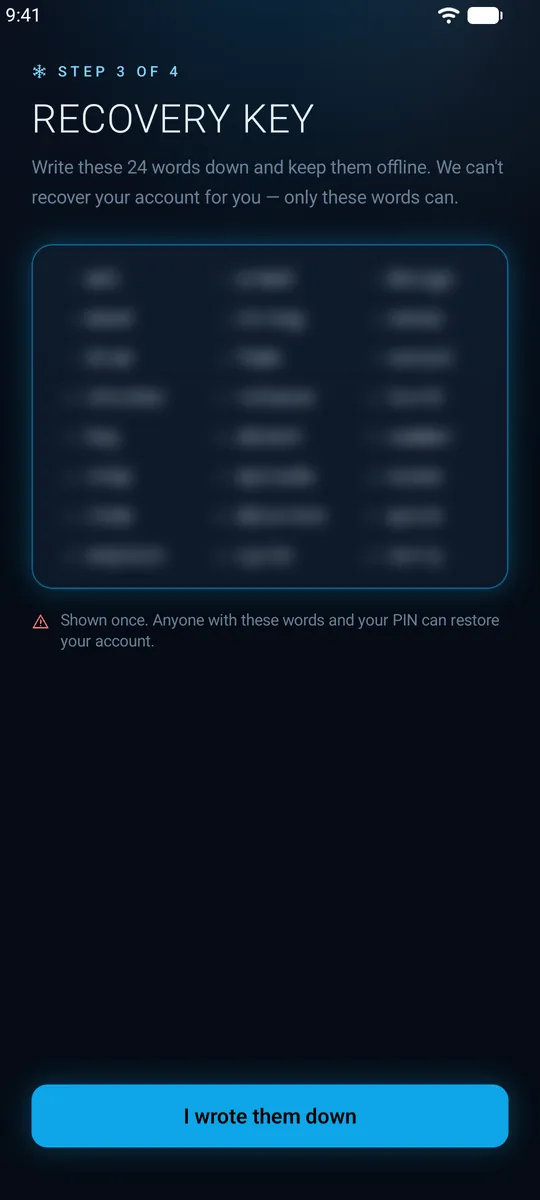
Write down your 24 recovery words
- The app shows your Recovery Key: 24 words, shown once. Write them on paper and keep them offline.
- They are the only way back into your account if you lose your phone. We can't recover it for you.
- The app then asks for a few of the words to check you have them.
Step 8
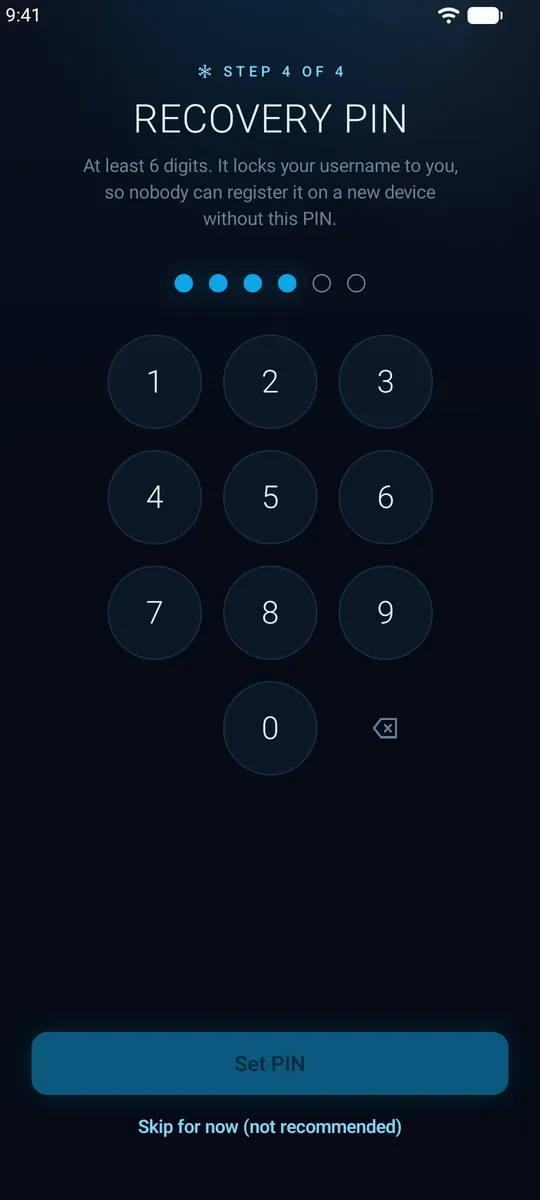
Set a recovery PIN
- Choose a recovery PIN and type it again to confirm. Together with your 24 words it restores your account.
- Then allow notifications: they only wake the app up and carry no name, no message and no sender.
Step 9
Start your first chat
- Start a new chat and type a friend's username, or scan their QR code.
- Say hello. Every message is end-to-end encrypted from the first one.
- For people who matter, compare safety numbers in the chat's info screen.